The Home Screen displays a dashboard-style summary of your system, including recent Event activity. The Menu Bar is available on this screen, as it is on every screen in the application.

Potential security issues and problems are highlighted in red. You can click the links for more information. You can always return to this screen using the Home button towards the upper right on the Main Menu. The dashboard summary squares include: •Controllers status summary — link takes you to Hardware •Web/Mobile connected client count, and whether the Admin password has been secured (Go to the Users module and change the Admin password to secure it.) •Recent Events — + View More link takes you to Events The exact summary squares visible depend on your User Role. Also note that when logging into a Secondary Controller, the summary squares are extremely limited due to the fact that the Secondary Controller gets its data from the Primary Controller. |
The Main Menu bar is at the top right of all screens. |
||
Notifications |
|
Click to view the Notifications you have subscribed to. The number of Notifications waiting for you is displayed under the icon. |
Home |
|
Return to the Home Screen. |
Layouts |
|
Layouts allow you to view multiple features or screens at a time. Select the single-pane layout to return to the standard view. |
Menu |
|
Opens a menu showing several miscellaneous options. See below. |
The exact Main Menu items available depend on your User Role. Also note that when logging into a Secondary Controller, the menu items are extremely limited, because it is mostly managed by the Primary Controller. |
||


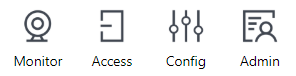
The Navigation Menu contains items for all of the main screens in the application, organized under four subject buttons. The Navigation Menu is repeated in every panel of multiple-panel layouts. This help manual is organized like the menu—four main sections containing a subtopic for each menu item. The subjects are Monitoring, Access Control, Configuration, and Administration.
Use the Back and Forward buttons to navigate through your own history of accessing the screens. (The browser's navigation buttons do not work inside AtlasCloud).
The exact Navigation Menu items available depend on your User Role. Also note that when logging into a Secondary Controller, the menu items are extremely limited, because it is mostly managed by the Primary Controller. |
Language |
Sets the language for the current User. Saved as the default for this User. |
Preferences |
Sets the preferences for the current User. Saved as the default for this User. The preferences are •"Items per Page", the number of items shown in one page of a list |
Change Password |
Opens a window allowing you to change your password. |
Help |
Opens this Help. |
About |
Opens a window showing product information. |
Sign Out |
Log out of AtlasCloud, returning to the Login Screen. |